For partners · 6 min read
Managing inventory & orders
Add products manually or by bulk upload, manage stock with a full adjustment history, and fulfil orders.
Two everyday partner tasks sit side by side in the console: keeping your catalogue current in Inventory Control, and fulfilling the orders that come in under Orders.
Add products
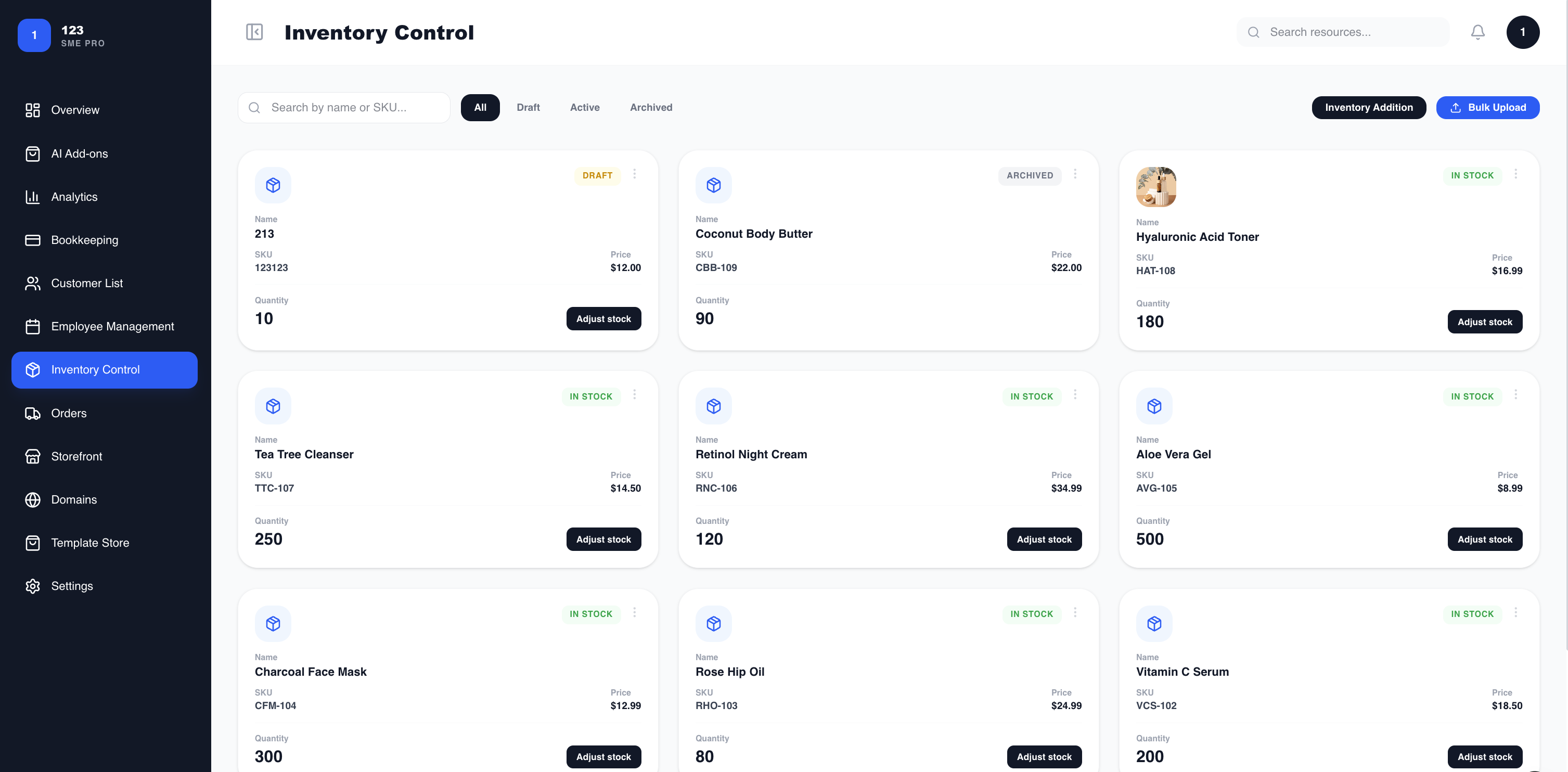
Open Inventory Control from the sidebar. You can add products one at a time, or import many at once.
To add one manually, fill in the form: item name, barcode / SKU (unique within your catalogue), quantity, price, and an optional description. Prices are shown to customers with your currency symbol. Each product can carry up to three photos (JPEG, PNG, or WebP — the first is the main image) and one video (MP4 or WebM). Manually added products start as a draft until you set them active.
Bulk upload (CSV)
To add a lot of products at once, choose Bulk Upload and provide a CSV or XLSX file with the columns name, sku, price, description, quantity — download the template if you need the exact format (up to 500 rows). Mediery reads the file and shows you the extracted products, flagging any SKUs you already have, so you pick exactly which ones to import. Imported products are created as active.
Stock adjustments
To change a product’s stock, choose “Adjust stock” and enter:
- Quantity change — a positive number to add stock, a negative number to remove it.
- Change type — Restock, Sale, Return, or Manual Adjustment.
- Notes — an optional reason for the change.
Then choose “Apply Change”.
How adjustments are tracked
Mediery keeps two things in step. Every change is written to a stock-history ledger — recording the amount changed, the resulting quantity, the change type, and your notes — and the product’s current quantity is updated to match. So you always have a single current stock figure backed by a full history of how it got there.
Stock can never go below zero: if you try to remove more than you have, the change is rejected. A product shows a “Low Stock” badge when it drops below five, and “Out of Stock” at zero.
Orders
When a customer checks out, the order appears under Orders as Pending. Because payment is by bank transfer, you reach out to the buyer with payment instructions and move the order forward as it progresses — for example Pending, then Confirmed, then Delivered.
How orders affect stock
Placing an order does not reserve stock. Stock is deducted only when you move an order out of Pending: at that point each line is checked against what you have (if you are short, Mediery asks you to adjust inventory first), the quantities are deducted, and each deduction is recorded in the ledger as a Sale.
Cancelling an order does not automatically put stock back. If you want to restock cancelled items, add them again with a Return adjustment.
The buyers who order from you are listed under Customer List for easy follow-up.